

Overview
The Bouncing emails page shows every email address that is currently undeliverable on your project’s public forms. When an address you’ve added to a form’s “Other recipients” (BCC) list starts bouncing — meaning the email provider is rejecting messages to it — Broadstripes records it here and stops sending to that address until you clear the suppression. Use this page to see which addresses are affected, understand why they’re bouncing, and re-enable delivery once the mailbox issue is fixed.Accessing the Bouncing emails page
- Click the Project settings icon in the upper right corner of any page (or press Ctrl-K / ⌘K).
- Choose Bouncing emails. You can start typing to filter the list.
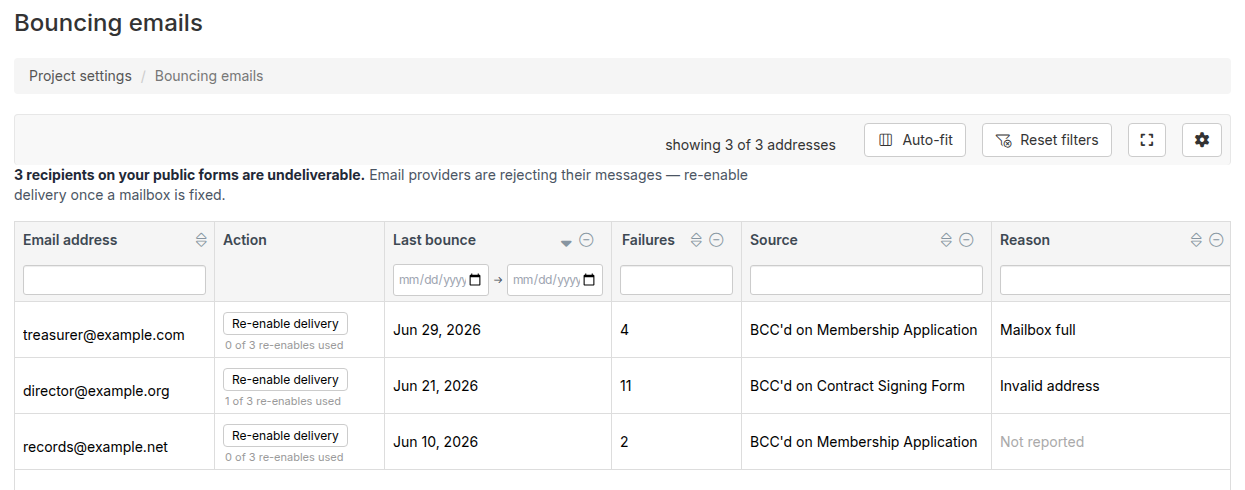
Understanding the table
Each row represents one blocked email address. The table includes the following columns:
The table supports sorting and filtering on all columns. Use the Source filter to find all bouncing addresses related to a specific form.
Re-enabling delivery
When a mailbox is fixed — the address is corrected, the inbox is no longer full, or the provider has cleared its block — you can ask Broadstripes to remove the suppression:- Find the address in the table.
- Click Re-enable delivery in the Action column.
- Confirm the action in the dialog that appears.
Re-enabling delivery does not guarantee future messages will be accepted. If the underlying mailbox problem is not resolved, the address may bounce again and re-enter the suppression list.
Re-enable limit
Each address has a limit on how many times delivery can be re-enabled. The Action column shows the current count (for example, “1 of 3 re-enables used”). When the limit is reached:- Regular users see the button disabled. The counter shows “Max re-enables used” and a warning icon appears. Consider correcting or removing the address from the form’s “Other recipients” field.
- Project group admins can re-enable past the limit, but a warning tooltip notes that the address may be permanently undeliverable. Use judgment before re-enabling repeatedly.
Fixing the underlying problem
Re-enabling delivery clears the suppression, but the address may bounce again if the root cause is not resolved. Common causes and fixes:- Invalid address: Correct the address in the form’s Confirmation email tab > “Other recipients” field.
- Full mailbox: Ask the recipient to clear space, then re-enable.
- Domain not found: The domain no longer exists or was misspelled — correct the address.
- Spam block: The recipient’s mail server blocked Broadstripes as spam — contact Broadstripes Support if this persists.
Relationship to the per-form Email tab
The Bouncing emails page is an aggregated view across all forms in the project. Each individual public form’s Confirmation email tab also shows its own bouncing “Other recipients” addresses — you can re-enable delivery from there too. Use whichever view is more convenient:- Use the Bouncing emails page to see all blocked addresses across all forms at once.
- Use the Confirmation email tab to see and fix issues while editing a specific form.
Next Steps
- Confirmation email tab — Configure “Other recipients” and other email settings for a public form.
- Public forms overview — Learn how public forms work.
- Viewing and downloading public forms — See and download submitted form PDFs.