

Search settings
The Search settings dialog lets project admins define keyword synonyms — alternative words that work exactly like the built-in search keywords. If your team calls workplaces “sites” instead of “employers,” or leaders “stewards” instead of “leaders,” you can add those words here so searches using them return the same results as the real keywords.Search settings is an admin-only feature. You must have permission to manage keyword synonyms to open this dialog.
Open Search settings
There are two ways to open Search settings:- From the Settings menu: Press Cmd-K (Mac) or Ctrl-K (Windows/Linux) to open the Settings menu, then search for or choose Search settings.
- From the project settings page: Go to Settings > Project settings (or click the project name and choose Project settings), then click Search settings in the Customize section. The dialog opens in place instead of navigating to a new page.
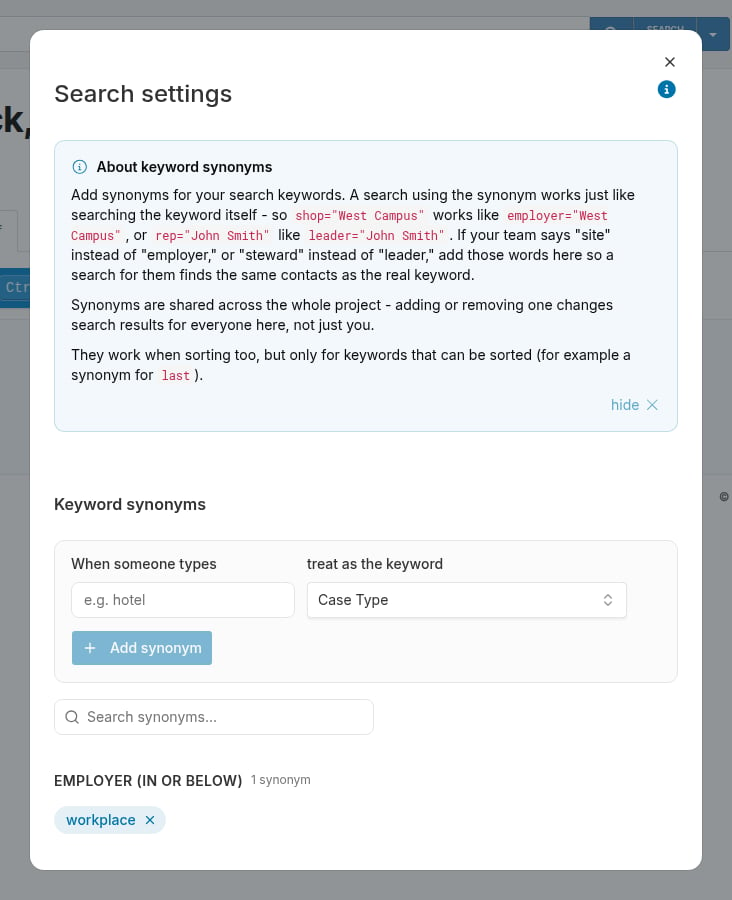
Keyword synonyms
A keyword synonym maps a word your team uses — the synonym — to one of Broadstripes’ built-in search keywords. When someone types the synonym in a search, Broadstripes treats it exactly like the keyword it maps to. Example: If you add “site” as a synonym for the Employer keyword, then a search likesite="West Campus" works just like employer="West Campus".
Synonyms also work in sort order — if you add a synonym for a sortable keyword (like last), searches sorted by the synonym term will sort correctly.
Synonyms are project-wide: adding or removing one changes search behavior for everyone in the project, not just you.
Built-in default synonyms
New projects start with a small set of default synonyms — for example, “workplace” maps to the Employer keyword by default. You can edit or remove these defaults just like any other synonym.Add a synonym
- In the When someone types field, enter the synonym term you want to add. You can use a single word or a short phrase.
- In the …treat it as the keyword field, select the search keyword the synonym should map to.
- Click Add. The synonym appears in the list below.
A term cannot be a synonym if it is already a live search keyword — Broadstripes resolves keywords before consulting synonyms, so such a row would never be reached. The dialog blocks this and shows an error if you try.
How synonyms match at search time
Synonym matching is case-insensitive and ignores punctuation and spaces. This means “work-site,” “WorkSite,” and “work site” all match a synonym whose term is “worksite.” Multi-word synonyms display in the chip list as a single title-cased word (so “work site location” shows as “WorkSiteLocation”), but the stored term and its matching are unaffected by that display format.Find a synonym
Use the Search synonyms field at the top of the list to filter by term or keyword name. The list narrows as you type, matching against both the synonym terms and the keyword labels. Clear the field to see all synonyms. Synonyms are grouped by keyword and sorted alphabetically within each group.Remove a synonym
Click the button on a synonym chip to remove it. If the term you are removing is used in an existing saved search, scheduled send, scheduled report, or calculated column, Broadstripes shows a warning before or after deletion:“‘workplace’ is used in at least one saved search, scheduled send, report, or calculated column. Deleting this synonym leaves the term unrecognized, so those searches will error until they are updated to search on the field directly.”The deletion still goes through — the warning is advisory. Review any affected searches or reports after removing a synonym and update them to use the keyword directly.